Proud to be Powered by Vontier. Sharing a united vision that is driven by innovation. Find out more
The purpose of this blog is to support ATG Technicians who will register a TLS-450PLUS or TLS4 Series ATG to Veeder-Root Device Management on the Hub. This guide outlines the registration procedure when working on-site at the ATG, along with necessary preparation steps and sources of additional information.
Prerequisites & Preparation
Veeder-Root ATG Technicians will need access to The Hub. If you don’t have access, please reach out directly to appsupport@veeder.com.
After creating your credentials and completing your first login, ensure that you have access to the Veeder-Root Provisioning Application. If the application is not visible, contact appsupport@veeder.com for assistance.
ATG Technicians will need to confirm the following URLs and Ports/Protocols (Outbound only) are whitelisted in the site's network configuration. If the site is managed by a Managed Service Provider (MSP), the ATG Technician on site will need to work with MSP to have the URLs whitelisted.
| URL | Protocols | Ports Required |
| https://ucc-checkin.hub.invenco.com/endpoint | HTTPS | 443 |
| aatnf1k6u65sn-ats.iot.us-east-1.amazonaws.com | HTTPS, MQTT over TLS | 8443, 8883 |
| https://devbootstrap.hub.invenco.com | HTTPS | 443 |
Ensure ATG software version is 11.C or later. Older versions will also require a software upgrade to be done on site.
ATGs with software version 8.T or older will require a new SD card prior to attempting an upgrade. It is also recommended to take an ATG Backup prior to upgrading.
To download the latest software update, please visit: veeder.com/us/software-downloads
Process for ASC Certified ATG Technicians
Important: This procedure is intended for on-site registration only (technician physically at the ATG).
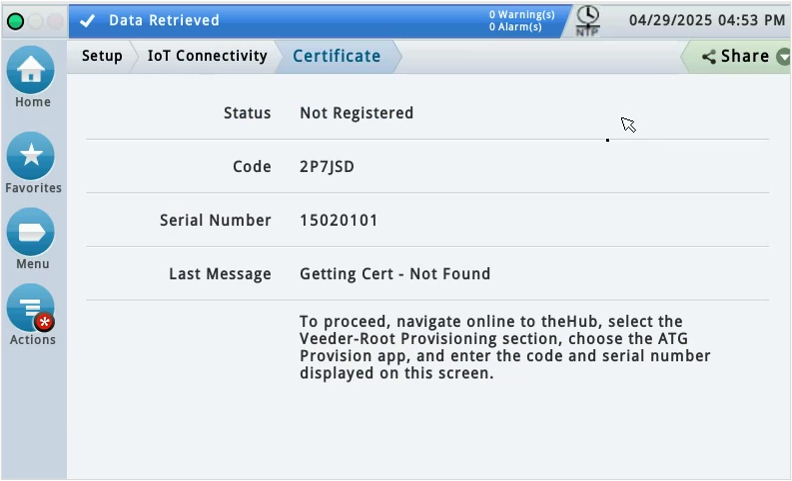
- Navigate to the certificate generation screen (Setup > IoT Connectivity > Certificate) to retrieve the code and serial
number from the ATG.
Note: The serial number must be recorded for entry into the Sign-Up Sheet and provided to the Veeder-Root Onboarding team. For support, call +1.800.997.7725 and select option 4, then option 4. If you receive an NTP error, click on Date/Time Setup, enable NTP, navigate back to the certificate screen, and generate code.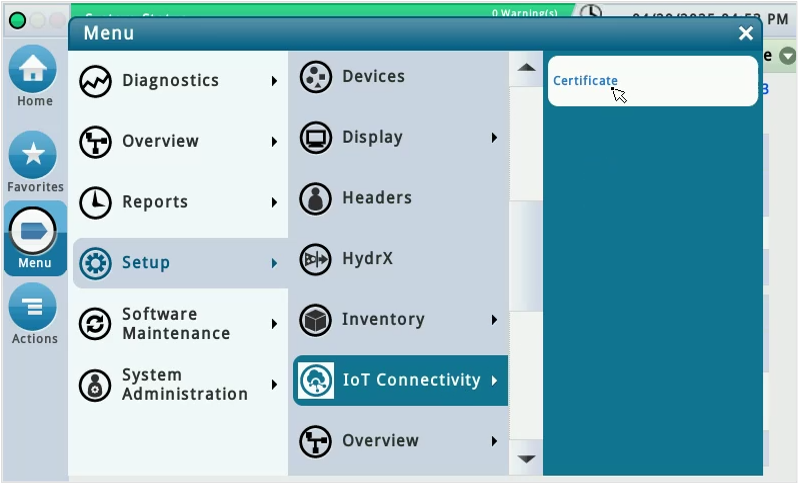
Using a web browser, log into The Hub at hub.veeder.com. Open the Veeder-Root Provisioning Application, enter the code and serial number of the ATG being registered, and click “Submit.”
Note: If the Provisioning Application is not visible on The Hub, please contact appsupport@veeder.com for assistance.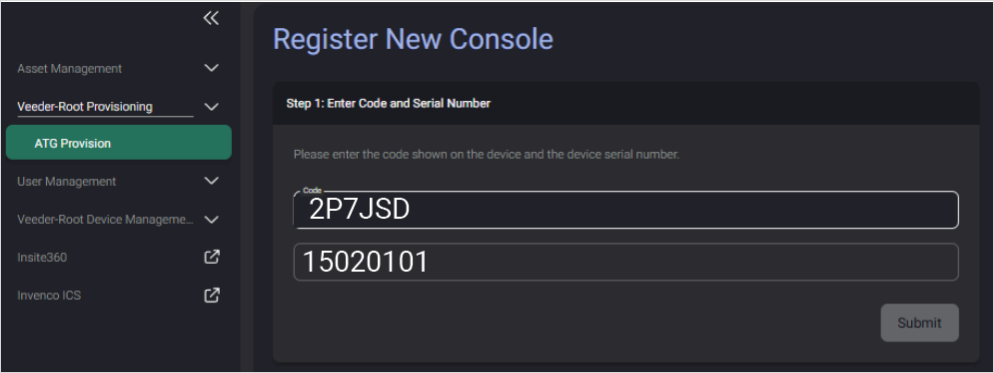
- Confirm the ATG model matches the model of the ATG at the site and click “Register.”
Note: Record the serial number for entry into the Sign-Up Sheet and for proper device onboarding. After registration, the serial number can be found on the services screen of the ATG (Diagnostics > IoT Connectivity > Services). For assistance with registration questions, contact appsupport@veeder.com.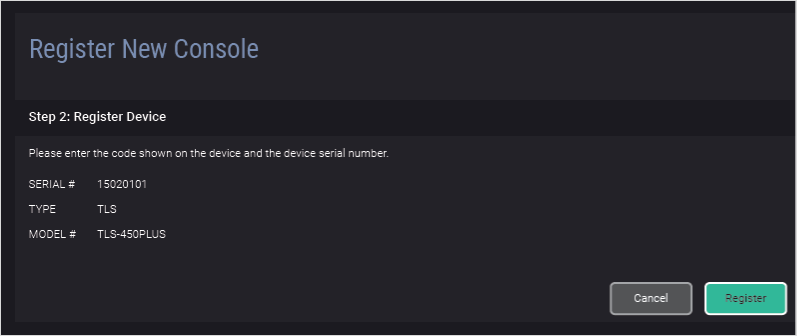
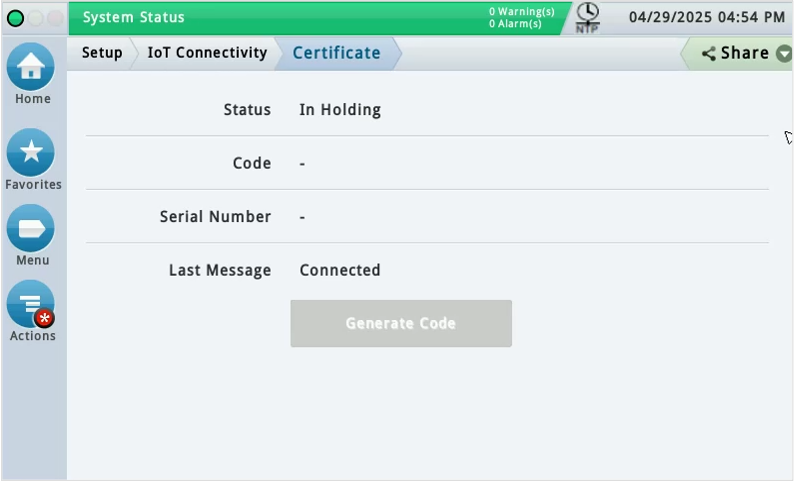
- Confirm ATG IoT connectivity status as “In Holding” and Last Message as “Connected” to confirm that the ATG is connected to The Hub.
Note: The Veeder-Root Onboarding team will continue from this point to activate the newly added sites and users.